
MCP

Connect Claude to your Instagram, WhatsApp and LinkedIn DMs

Claude, Cursor or any MCP client reads your Ficiel history, finds a lead, spots the ones who went quiet, tunes Kord's settings and, if you allow it, sends a message or a file on your behalf. Takes 30 seconds, with your personal key.

Included in the 10-day free trial. You create your key in your Ficiel settings in one click.

New · October 8, 2026

Ficiel shows up inside Claude

Ask your question and the screen shows up in the conversation, with buttons. Your morning routine, who to follow up with and then following up, happens without leaving your assistant. Stats, pipeline, cash and custom analyses show up the same way.

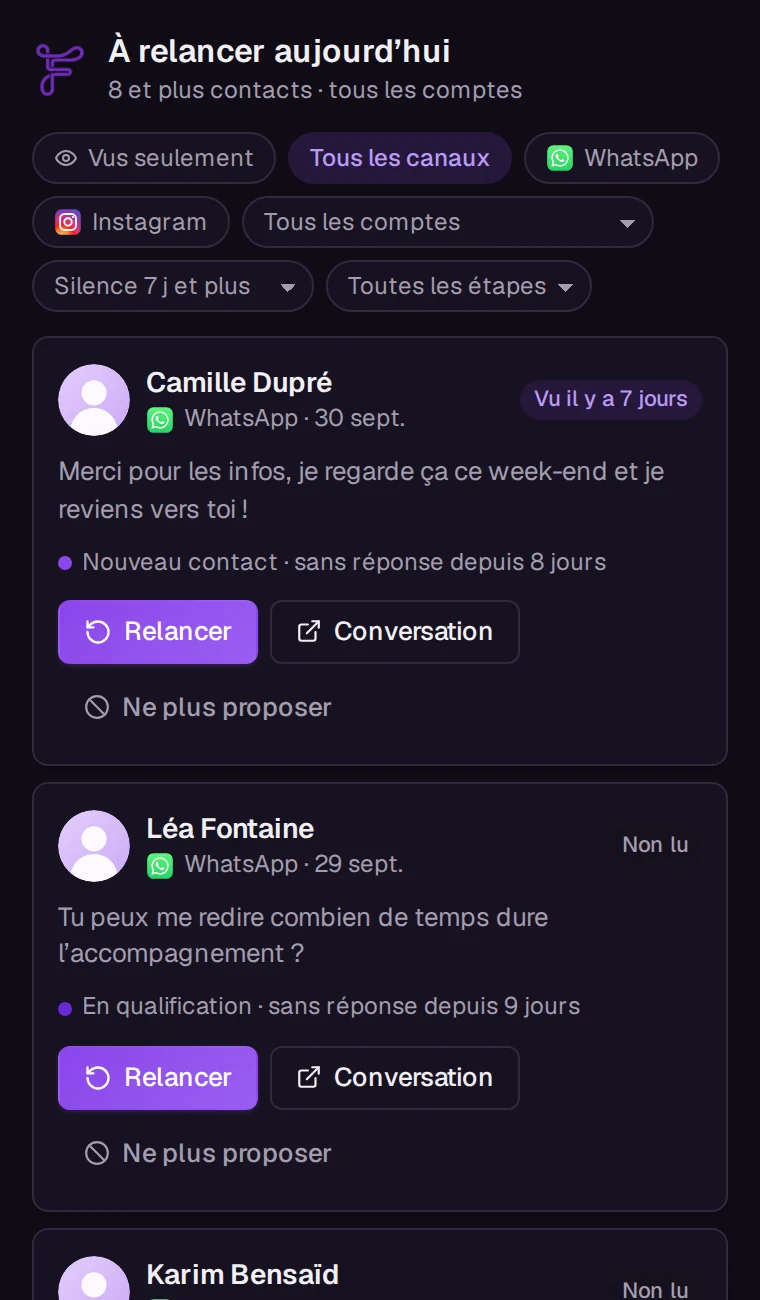
Ficiel screen in Claude: Who to follow up with
Who to follow up with"Who left me on seen?"The leads to follow up with: photo, channel, last message, how long ago, and whether they saw your message. One Follow up button per lead.
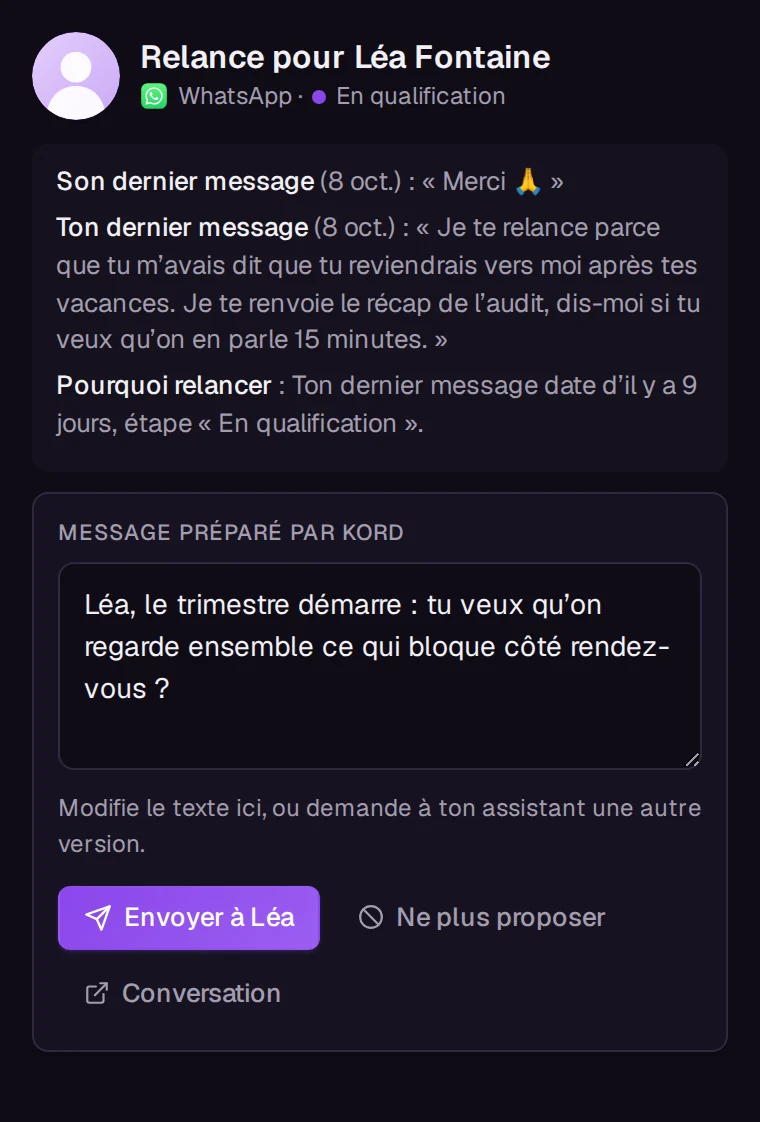
Ficiel screen in Claude: A ready follow-up
A ready follow-up"Draft a follow-up for Sarah"The message Kord drafted, with the last exchange and the reason to follow up. Edit it or ask for another version, then hit Send. "Sent" only shows once the channel accepted it.
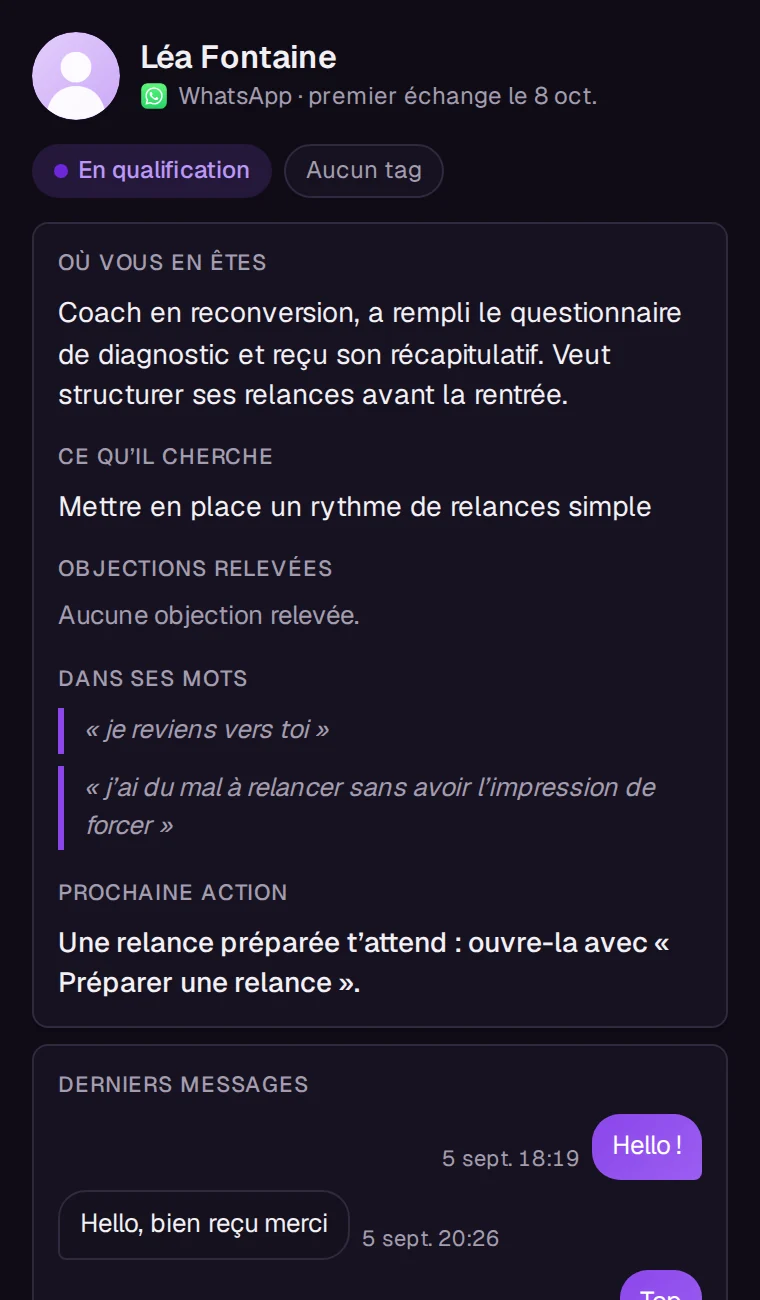
Ficiel screen in Claude: A lead profile
A lead profile"Where am I with Sarah?"Where things stand, what they want, their objections, the next step and your latest messages, on both sides.
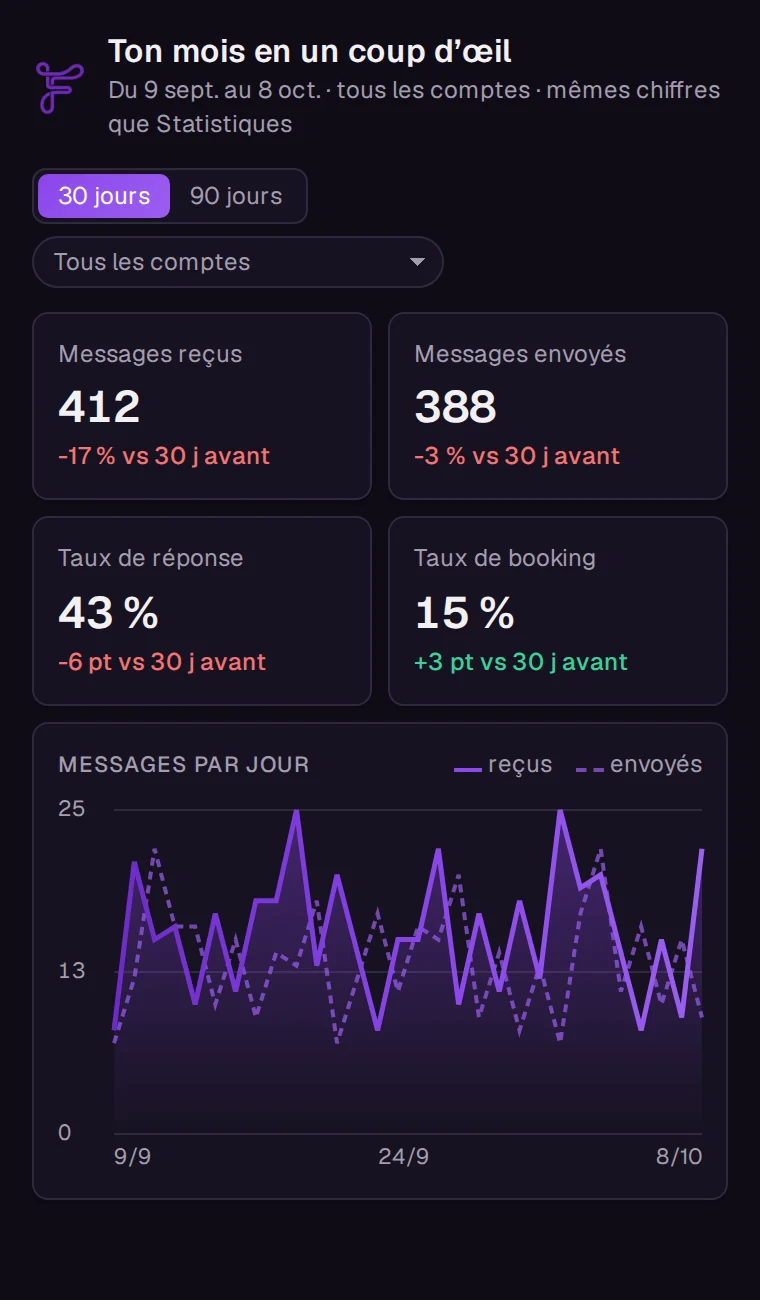
Ficiel screen in Claude: Your month
Your month"My month at a glance"Messages, qualified leads, calls, reply rate and booking rate over 30 or 90 days, compared to the period before. The same numbers as your Analytics tab.

What to ask

Name Ficiel in your request: in claude.ai, the assistant only opens an app when you name it, or when you pick one of its ready-made prompts when your assistant offers them.

  • Who to follow up withWith Ficiel, who left me on seen?
  • A ready follow-upWith Ficiel, draft a follow-up for [lead first name].
  • A lead profileWith Ficiel, where am I with [lead first name]?
  • Your monthWith Ficiel, show me my month at a glance.
  • An analysisWith Ficiel, analyze my last 30 days and tell me which setting approach works.
Once and for all: in Claude, Settings, Profile, preferences
When I talk about my DMs, my leads, my follow-ups or my setting stats, use Ficiel and show its screens.
01 · Setup

Connect Claude to Instagram, WhatsApp and LinkedIn

In the Claude app, paste one address and log in to your Ficiel account, no key to copy. In Claude Code, Cursor or any other MCP client, one command with your personal key. Your assistant sees your conversations on the very next call.

Claude app (claude.ai, desktop, mobile): custom connector
https://bridge.ficiel.io/mcp

In Claude, open Settings, then Connectors, add a custom connector and paste this address. Claude sends you to Ficiel: you log in, choose what the assistant is allowed to do, and you're connected. The connection shows up in your Ficiel settings, where you can cut it off anytime. Available since August 23, 2026.

Claude Code
claude mcp add --transport http ficiel https://bridge.ficiel.io/mcp --header "Authorization: Bearer YOUR_KEY"
Cursor and other MCP clients (config file)
{
  "mcpServers": {
    "ficiel": {
      "url": "https://bridge.ficiel.io/mcp",
      "headers": { "Authorization": "Bearer YOUR_KEY" }
    }
  }
}

You create your key in your Ficiel settings in one click, read-only or with send permission on top. It never leaves your workspace.

  1. Create your keyin your Ficiel settings, choosing what it is allowed to do.
  2. Paste the commandinto your assistant, with your key in place of YOUR_KEY.
  3. Ask your first questionin plain English: it answers with your real conversations.
02 · Tools

What your assistant can do

73 tools as of October 14, 2026, eight families, and 12 ready-made prompts in your assistant's menu. Every number, list or follow-up shows up as an interactive screen. Nothing gets cut off: messages, voice notes, notes and instructions come out in full, and a long answer reads page by page. It reads, detects, qualifies, tunes Kord, analyzes your numbers, runs your automations, and only sends if you give it permission.

Interactive screens

Screens with buttons, shown right inside the conversation with your assistant.

  • Who to follow up with (left on seen) the leads to follow up with, filtered by channel, account, silence and stage.
  • Follow-up card the follow-up Kord drafted, editable, sent in one click with its real outcome.
  • Lead profile summary, objections, next step, latest messages; change the stage in one click.
  • Monthly recap your numbers over 30 or 90 days, compared to the previous period.
  • Show an analysis the analysis your assistant worked out (which setting approach works, which account replies best), as numbers, a table and a chart, with nothing made up.
  • And all your numbers stats, period comparisons, pipeline, per-account numbers, cash, ready follow-ups and scheduled messages show up as screens too.

A screen never acts on its own: every message goes out when you click Send, after the same checks as in Ficiel (recipient, blocklist, "Do not contact").

Read

Read what is already there, without changing anything.

  • List conversations by channel, stage, tag or age, each with a link that tells you who it is (app.ficiel.io/inbox/@handle).
  • Read your images, documents and videos the description and visible text of an image, the text of a PDF, the length and transcript of a video; and the image or document itself, to look at.
  • Know if your message was seen seen, not seen yet, or unknown when the channel does not say; plus the list of conversations left on seen with no reply.
  • Read a conversation the full thread, incoming and outgoing, with voice notes transcribed in full (and, when a transcript is missing, the reason why).
  • Search your messages a word, a phrase, a topic, across your whole history.
  • Lead timeline the whole story, in order, ready to summarize, page by page back to the very first message.
  • Lead profile identity, channels, stage, tags, notes, counters, last contact.
  • Tags, stages and channels the exact names in your workspace, so nothing gets made up.
  • Message templates your saved replies, with variables filled in for a given lead, ready to review before sending.
  • Recorded voice notes your voice note library, with what you say in each one, ready to send as is.
  • Pending follow-up cards this morning's batch and the suggestions, with the exact text that would go out.
  • Merged lead profiles active merges, so you know which ones can be undone.
  • Channel status connected or not, and how far the history import has gone, in the same words as the Connections screen.
  • Team members who has access, with which role, which permissions and which channels.
  • Find a lead by handle a handle, a phone number or a profile link, no internal ID needed, with a direct link to the conversation.

Detect

Find the people who are waiting without saying so.

  • Find dormant leads conversations that went quiet, most recent first.

Qualify

Organize a lead with your own markers.

  • Create a tag same rules as in the app: unique name regardless of case, color of your choice.
  • Add or remove a tag any existing tag in your workspace.
  • Edit a tag name, color, description, and how it affects follow-ups and automated messages.
  • Create or edit a pipeline stage label, color, final stage, excluded from follow-ups.
  • Edit a lead's profile first name, last name, phone, email, availability, score, nickname.
  • Create or edit a message template title, text and category, never deleting one.
  • Read, unread, archive, pin your inbox actions, all reversible.
  • Merge or unmerge two leads the same action as the button in the app, with explicit confirmation and a way back.
  • Bulk actions change the stage, add or remove a tag, archive or unarchive up to 50 leads, always after a dry run that shows what will change.
  • Move a lead in the pipeline change their stage.
  • Mark a call as booked with the real date and time of the call, from your calendar or CRM: the lead moves to "Call booked" and the call counts in your pipeline.
  • Read your open slots the next two truly free slots in the calendar connected to Ficiel, so you never offer a made-up time.
  • Book a slot the slot a lead agreed to, checked again right before: the call is created in your calendar and the lead moves to "Call booked".
  • Add a note a free-form note on their profile.
  • Add to or remove from the blocklist stops every message to this lead until you lift it.
  • Workspace blocklist who is on it, and since when, when known.

Configure

Tune Kord and its settings, only if your key allows it. Setting up a channel's AI is part of the Intégral plan.

  • Pause Kord on a conversation or resume it, without touching the rest of your workspace.
  • Set up delegation for a channel pause the whole channel, adjust its quiet hours (no automated message outside the window you pick).
  • Read Kord's setup positioning, tone, qualification criteria, custom instructions.
  • Edit Kord's instructions find and replace one precise passage, never a full overwrite.
  • Edit Kord's profile positioning, tone, formality, qualification criteria, questions and script ending, field by field, every change versioned and restorable.
  • Kord's setup history and restore find an earlier version of the instructions and restore it, and the restore can be undone too.
  • Read learned rules what Kord picked up from your conversations, pending review or already adopted.
  • Adopt or dismiss a learned rule your call, never automatic.
  • Remaining send limits what's left before the cap, channel by channel.

Turning automated sending back on for a whole channel stays your decision, made in Ficiel: an assistant can pause, never reactivate.

Send

Send, only if your key allows it.

  • Send a message text, on a connected channel, to a lead you already have a conversation with.
  • Send a file image, video, document or one of your recorded voice notes, to the same lead. No voice note is generated.
  • Approve or reject a follow-up card approving sends the card's text (or your edited version) after the recipient is checked; rejecting teaches Kord.
  • Draft a follow-up Kord writes a follow-up for the conversation you pick, after checking the lead can be followed up; nothing is sent until you approve the card.
  • Simulate a reply what Kord would say in a conversation, for you to review. Nothing goes out: this simulation has no sending tool at all.
  • Schedule a message set a text for a date and time you choose: exactly the "Schedule this message" button in the composer, same mechanism, same automatic cancel if the lead replies first.
  • List scheduled messages the ones still waiting, across your workspace or in one conversation.
  • Cancel a scheduled message before it goes out: the lead never knows it was scheduled.

Every message goes through the same limits and safeguards as the rest of Ficiel, nothing bypasses anything: blocklist, protected stages, per-channel caps.

Analyze

The same numbers as your Analytics page, ready to cross-check.

  • Workspace stats volume, replies, calls, over any period you want.
  • Stats by channel the same numbers, split channel by channel.
  • Conversion pipeline how leads move from one stage to the next, with the rates.
  • Compare two periods the current period against the previous one, with the gaps.
  • Closed cash and dormant cash what you collected and what is sitting in your conversations, with the same numbers as the Cash section.
  • Closed amounts and offer price enter the amount for a closed client, or set the price of your offer (Intégral plan), now or from a date you choose.

Automate

Run automations you already wrote, never generated at send time. Creating and setting up an automation is part of the Intégral plan; reading and turning off stay open to everyone.

  • Read your automations the state of your automations (follow-up after silence, comment to DM): on or off, current content.
  • Turn on, turn off or edit an automation on an automation you already created; the text of your follow-ups is always written by you.
  • Create an automation the follow-up after silence, with the content you provide.
  • Automation history who was reached, when, with what reply rate.

The assistant adjusts your existing automations; it never builds a comment to DM automation from scratch (picking a post to watch stays in the app).

Ficiel MCP is listed on GitHub repository (docs), the official MCP Registry, Glama, LobeHub, Cursor Directory, mcpservers.org.

03 · Examples

Questions in plain English, answers from your own inbox

Three requests the way people actually type them, and what the assistant does behind the scenes.

"Pull the leads who talked budget but never booked a call."

The assistant searches your messages for "budget", "price", "cost", cross-checks each lead's stage and gives you the ones who never reached "Call booked".

"List my most promising leads who went quiet more than 30 days ago."

It runs dormant lead detection with your threshold, filters out your protected stages and blocklist, then sorts them from the most recent sign of life to the oldest.

"Sum up my whole history with this lead before my call."

It reads the lead's timeline across every channel and gives you a few-line summary: what they asked, what you offered, where it stopped.

04 · Security

Your key, your rules

Ficiel is an AI inbox for coaches and setters: it surfaces old Instagram, WhatsApp and LinkedIn conversations worth following up, drafts the message, and nothing is sent without your approval. Connecting an assistant doesn't change who decides.

  • One key per workspace

    The key is tied to your workspace and only ever sees it. One workspace never reads the conversations of another.

  • Read and send kept apart

    Two separate scopes. A read-only key cannot send anything, whatever the assistant asks it to do.

  • Revoke in one click

    Turn the key off whenever you want, from your settings. A revoked key is refused on the very next call.

  • Every call logged

    Who called what, when, with which key: everything is tracked. Request parameters are kept 90 days, never the text of your messages.

  • Your data stays with you

    No conversation leaves your workspace. The assistant comes to read in your workspace; your conversations are not copied over to it.

FAQ

Why doesn't Claude show me Ficiel's screens?

In claude.ai, the assistant only uses an app when you name it or pick it. Start your request with "With Ficiel, …", pick one of Ficiel's ready-made prompts when your assistant offers them, or paste this once into your Claude preferences: "When I talk about my DMs, my leads, my follow-ups or my setting stats, use Ficiel and show its screens."

Does Ficiel show up inside Claude, with buttons?

Yes, since October 8, 2026. Ask "who left me on seen?": the list shows up in the conversation, with a Follow up button for each lead. The follow-up Kord drafted opens in the same screen, you edit it if needed, and it goes out when you click Send, never without you. You also get a lead profile and your monthly recap, in light or dark mode to match your Claude app.

How do I connect Claude to my Instagram?

First connect your Instagram account to Ficiel. Then, in the Claude app, add a custom connector with the address https://bridge.ficiel.io/mcp and log in to your Ficiel account. Claude can now read your Instagram, WhatsApp and LinkedIn conversations, find a lead and draft a follow-up. In Claude Code, one command does it, shown above. Available since August 23, 2026.

Can I connect ChatGPT to my DMs?

Ficiel speaks MCP, the open protocol ChatGPT also accepts for its connectors, and its interactive screens follow the MCP Apps standard shared by Claude and ChatGPT. We haven't tested the connection end to end from ChatGPT yet, so we don't list it as compatible. The verified assistants are Claude (app and Claude Code) and Cursor.

What is MCP?

An open protocol that lets an AI assistant plug into your tools, with your permission. Ficiel exposes your conversations through it: your usual assistant can read them, search them and, if you allow it, write on your behalf, without copying your data anywhere else.

Which assistants work with it?

Claude (app and Claude Code), Cursor, and any client that speaks MCP over HTTP with an authorization header. The Claude command is above; for the others, the config file with the address and your key is all you need.

Can the assistant send messages or files without me?

Only if you create a key with send permission, and always within Ficiel's limits: blocklist, protected stages, per-channel send caps, and only leads you already have a conversation with. Every message has to name its recipient, and it's refused if that name doesn't match the real lead. With a read-only key, it can't send anything or change your settings.

Can it show me what Kord would reply, without sending it?

Yes: the reply simulation writes a text for you to review, and never sends it. There is no sending tool inside this simulation at all, so there's no safeguard to get around.

How much does it cost?

It's included from the 10-day free trial, then in your subscription. On Essentiel, the assistant handles the day to day: it reads, searches, drafts, sends and schedules your follow-ups, organizes your leads (tags, stages, notes, one by one or in bulk) and tunes Kord. Intégral adds the setup work: creating and configuring your automations, the AI per channel and your offer price. You create the key in your settings, no add-on to buy.

Your assistant already knows your tools. Give it your conversations.

Create your account, connect your channels, generate your key in your settings: your assistant reads your history the same day.